
How to Make Two-in-One Tap and Hold Images: Merge Two Pictures into One
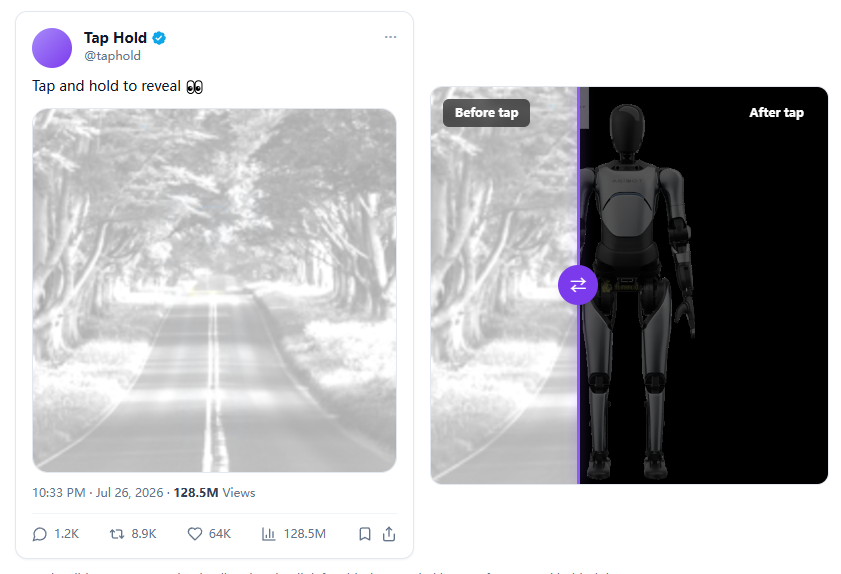
A normal Tap Hold image hides parts of a single picture. The two-in-one version goes further: it packs two completely different images into one file. One image (the cover, or A) shows in the X timeline, and a second image (the reveal, or B) appears only when someone taps and holds to open it. Same trick, twice the surprise.
What is a two-in-one Tap Hold image?
It is a single PNG that shows different content depending on the background it is placed on. In the X timeline the thumbnail sits on a light background, so viewers see image A. When the picture is opened, X shows it on a dark background, and image B takes over. Nothing is animated and nothing is uploaded to a server — it is one static image using transparency.
People call this a two-in-one, an A + B merge, a hidden image, or a Kakushie with two layers. Whatever the name, the goal is the same: a clean cover that hides a second picture until someone interacts with the post.
How merging two images works
Every pixel in the exported PNG stores a colour plus a transparency (alpha) value. On a light background the visible result is the colour blended toward white; on a dark background it is the colour blended toward black. By choosing the colour and alpha of each pixel carefully, the same pixel can read as part of A on white and part of B on black.
Because one pixel only has one transparency value, two full-colour images cannot both be reproduced perfectly. The tool solves this by placing the cover in a brighter tonal band and the hidden image in a darker one, so they never bleed into each other. The cover reads as a clean, slightly desaturated picture in the feed, and the reveal keeps its colour when opened.
How to make one, step by step
- Open the editor and choose the Merge A + B tab.
- Upload the cover image (A) — this is what people see in the timeline.
- Upload the reveal image (B) — this is what appears on tap and hold. You can add the two in any order.
- Adjust cover brightness so the cover reads clearly in the feed.
- Adjust hiding strength until the cover hides the reveal well in the preview.
- Download the PNG and post it on x.com from a desktop browser.
Tips for a clean result
- Pick a cover with clear shapes and good contrast so it stays readable when desaturated.
- Use a reveal image with strong, saturated colour so it still pops after it is darkened.
- Avoid two images that are both very dark or both very light — contrast between them makes the switch stronger.
- Always confirm with the before/after preview before you export.
Cover brightness and hiding strength
Cover brightness lifts the cover image (A) so it stands out in the light timeline. Raise it if the cover looks too dim or muddy in the feed preview.
Hiding strength widens the gap between the two tonal bands. Higher values hide the reveal more thoroughly in the feed but make it darker when opened; lower values give a brighter reveal but let more of it show through the cover. Nudge the two sliders together until the feed shows A and the tap view shows B.
Single image vs. A + B merge
- Use the single-image mode when you want to hide part of one picture and reveal the rest — for spoilers, punchlines, or before/after shots.
- Use the A + B merge when you want two unrelated pictures: a decoy cover and a surprise reveal.
- The single-image mode keeps full colour on the reveal; the merge trades a little colour for the two-image effect.
Troubleshooting
If the reveal is too dark, lower the hiding strength or choose a brighter reveal image. If the cover looks washed out, raise the cover brightness or pick a higher-contrast cover. If either image looks faded, remember that the merge intentionally desaturates a little to avoid colour casts — a bolder source image compensates.
As with any Tap Hold image, post from a desktop browser at x.com. The mobile app re-encodes uploads as JPEG, which removes transparency and breaks the effect. After posting, wait a minute or two and check the result on mobile.
Frequently asked questions
What is the difference between a normal Tap Hold and a two-in-one?
A normal Tap Hold hides parts of one image. A two-in-one merges two different images: a cover that shows in the feed and a separate image that reveals on tap.
Why does the cover look less colourful than my original?
A single PNG has one transparency value per pixel, so two full-colour images cannot both be reproduced exactly. The tool lightly desaturates to prevent colour casts, which keeps the result clean. Use a high-contrast cover for the best read.
Can I upload the reveal image before the cover?
Yes. You can add the cover (A) and reveal (B) in any order. The preview and download update once both are in place.
Do I need to post from desktop?
Yes. Upload the downloaded PNG on x.com from a desktop browser. The X mobile app converts images to JPEG and destroys the transparency the effect relies on.
Is it free and private?
Yes. The merge runs entirely in your browser with no signup, and your images are never uploaded to a server.
Make your first Tap Hold image
Free, no signup, and 100% browser-based. Upload, brush, preview, and export a PNG8 in minutes.
Open the free editor