
How to Make Tap and Hold Images for X (Twitter): Complete 2026 Guide
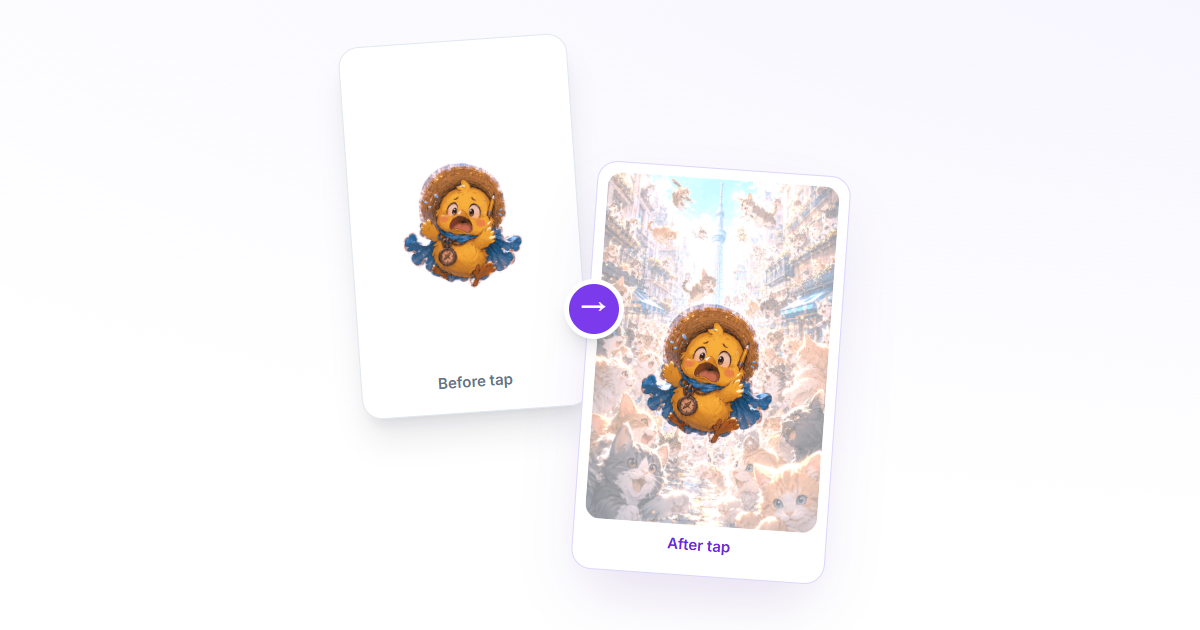
Quick answer: how do you make a Tap Hold image for X?
A Tap Hold image—also called a press-and-hold image, Tap to Reveal picture, or Kakushie—is one static transparent PNG that can produce two visual impressions on X. The feed thumbnail looks pale or nearly empty, while opening the image reveals the complete artwork.
What you need before you start
- A strong source image. Portraits, AI artwork, illustrations, and clear before/after concepts usually create the easiest-to-read reveal.
- A modern browser. The editor uses HTML5 Canvas and processes the image locally on your device.
- A desktop browser for publishing. Posting through a mobile app may flatten transparency or re-encode the file.
- A simple hook. Tell viewers what to do with a short caption such as “Tap and hold to reveal.”
Step-by-step: make the Tap Hold image
- Open the 10-second Tap Hold maker and choose your source image.
- Use “Show before tap” to paint the outline, caption, or clue you want visible in the feed. Leave the surprise unpainted.
- Choose an output ratio. Auto preserves the original ratio; the square, portrait, and landscape presets crop from the center.
- Use the before/after slider. The left side approximates the X feed thumbnail; the right side shows the opened image.
- Optionally enable line art as a subtle teaser and adjust brightness compensation if the revealed image looks too dark.
- Download the PNG8 and keep that original file unchanged.
If you prefer the Japanese workflow and terminology, the Kakushie maker provides the same editor with context about カクシエ and 隠し絵.
Why PNG8 matters
PNG8 is an indexed-color PNG. Instead of storing a separate full alpha value for every RGBA pixel, it references a limited palette that can include transparent entries. For this effect, the hidden region is distributed as a fine pattern of transparent and solid pixels.
When X downsamples that pattern for a feed thumbnail, neighboring pixels are averaged against the timeline background and the region becomes faint. In the full-size viewer, the dark background and original-size pattern create a much stronger image. A normal PNG export may look similar on your computer but be processed differently after upload.
How to publish the finished image on X
- Open x.com in a desktop browser and create a new post.
- Upload the PNG8 directly from your downloads folder. Do not resave it in a chat app or photo editor first.
- Add a concise interaction prompt. Avoid explaining the hidden result.
- Publish and wait one or two minutes for timeline thumbnails to be generated.
- Check the post on a supported mobile client, another account, or a private browser window.
For caption ideas, multi-image cautions, and a pre-publish checklist, use the dedicated Tap Hold post guide.
Troubleshooting common failures
The image is fully visible in the feed
Confirm that you uploaded the downloaded PNG8 rather than a screenshot or resaved copy. Reduce the painted “show before tap” area and test again. Also allow time for X to replace its first cached preview.
The reveal looks too dark
Increase the brightness compensation before exporting. The full-size viewer commonly uses a dark background, so colors may need a stronger boost than they do on a white canvas.
The effect worked once and then stopped
X clients, thumbnail sizes, caching, and image pipelines can change. Test the exact exported file on the account and device you care about. No third-party maker can guarantee behavior across every X client indefinitely.
Frequently asked questions
Can I make a Tap Hold image in 10 seconds?
Yes. For a basic result, upload an image, accept the default masking, preview it, and export PNG8. More precise teaser areas take a little longer to brush.
Is Tap Hold the same as Kakushie?
They commonly describe the same hidden-image technique. Kakushie is the Japanese term; Tap Hold, press and hold, and Tap to Reveal are common English names.
Why should I post from desktop x.com?
Mobile and intermediary apps may re-encode or flatten transparent images. Uploading the original PNG8 from a desktop browser gives the effect the best chance of surviving unchanged.
Are my images uploaded to taphold.co?
No. The editor processes and encodes images locally in your browser. Your source image is not sent to the site server.
Does the effect work on every device?
Not always. X clients and thumbnail rendering can differ or change. Use the preview as an approximation and verify the published post on your target device.
Make your first Tap Hold image
Free, no signup, and 100% browser-based. Upload, brush, preview, and export a PNG8 in minutes.
Open the free editor